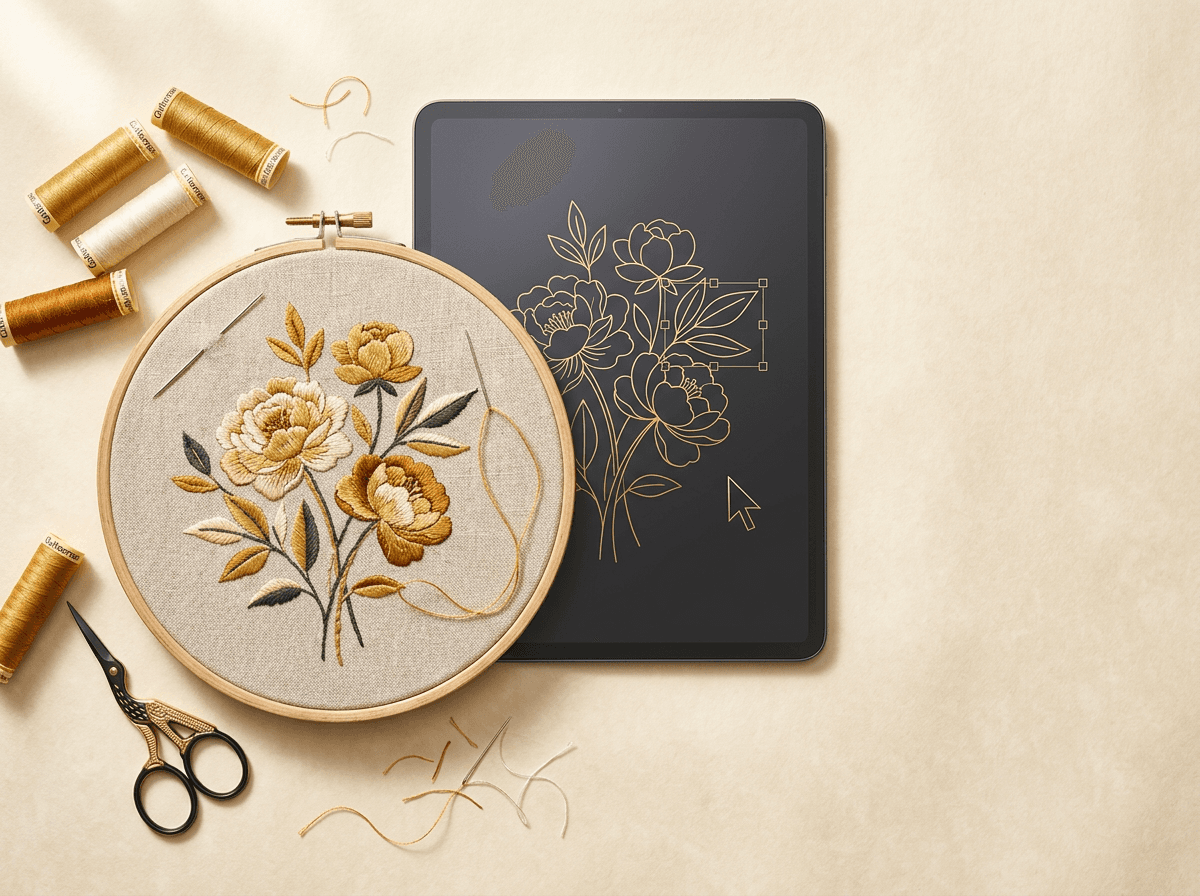
If you digitize or sell embroidery designs, you already know the problem: a customer sends you a file in the wrong format, or you need to swap one thread color, nudge a logo two millimeters to the left, or peek at the stitch count before you quote a job — and installing full digitizing software just to make one small change feels like overkill.
Smart Studio is our answer to that. It's a free, browser-based embroidery editor built right into your EmbroideryDigitize dashboard — no downloads, no license, no learning curve steep enough to need a manual. Open a file, make your changes, export it back out. This guide walks through everything it can do.
What Is Smart Studio?
Smart Studio is a canvas editor for machine embroidery files. You open a design — DST, PES, JEF, VP3, EXP, and 90+ other formats are supported — and it's laid out on screen exactly like a vector or image editor: objects you can select, move, resize, recolor, reorder, and export, plus a stitch-level view for the rare cases where you need to adjust individual needle points rather than a whole object.
It lives at Dashboard → Smart Studio once you're logged in, and everything happens in your browser — your file never needs special software installed to be opened, previewed, or edited.
Opening a File
Use File → Open (or the Ctrl+O shortcut) and pick any supported embroidery file from your computer. Smart Studio parses it and lays every stitch object out on the canvas, automatically zoomed to fit the whole design in view. You can have several files open at once — each one gets its own tab along the top, so you can compare two versions of a logo or work on multiple orders side by side without losing your place.
Touring the Interface
Once a file is open, you're looking at four main areas:
- The canvas — your design, rendered stitch-by-stitch. Zoom in and the individual threads get visibly thicker and take on a rounded, slightly glossy look, closer to how the finished embroidery will actually appear on fabric than a flat line drawing.
- The toolbar (left edge) — Select, Edit Nodes, and Hand tools, plus grid and theme toggles.
- The Objects panel (top right) — every color block in your design, listed as a reorderable layer.
- Design Info and Thread Colors (bottom right and bottom bar) — live stats and a clickable palette of every thread color in use.
The Three Tools You'll Use Most
Select (V)
The default mode. Click any stitched object to select it — a dashed bounding box with drag handles appears, so you can resize proportionally or reposition it by dragging. Click and drag across empty canvas to draw a marquee and select several objects at once, or hold Shift while clicking to add objects to your selection one at a time.
Edit Nodes (E)
For fine, stitch-level corrections. Switch to this mode with a single object selected and every needle point in it appears as a small handle you can drag individually — useful for nudging a stitch that landed slightly off, without having to redigitize the whole object.
Hand / Pan (H)
Click and drag anywhere to reposition your view — handy once you're zoomed in past what fits on screen. If you have a mouse with a middle button, clicking and dragging with it pans the canvas no matter which tool is currently active, so you're never more than one click away from repositioning your view.
Keyboard shortcuts: V for Select, E for Edit Nodes, H for Hand, G to toggle the grid, and the scroll wheel to zoom at any time.
Managing Your Design's Layers
Every distinct color block in an embroidery file is its own object, and the Objects panel lists all of them in stitch order — the same order your machine will sew them. From there you can:
- Reorder objects by dragging the grip handle, or with the up/down arrows — changes which color gets stitched first.
- Recolor an object by clicking its color swatch and picking a new thread color.
- Rename an object by double-clicking its label — useful for keeping track of what's what in a busy design.
- Hide or show an object with the eye icon, to preview the design with a piece temporarily removed.
- Delete an object you no longer need.
The Thread Colors bar along the bottom shows every unique color used across the whole design as a swatch. Click one to instantly select every object that uses it — handy when a design uses the same shade in several places and you want to change all of them together.
Getting the Size and Position Exactly Right
Select one or more objects and the Transform panel appears with the selection's width, height, and position in centimeters. Type in exact values instead of eyeballing a drag, or hit Center on canvas to snap a piece back to the middle of the design — useful when you're prepping a logo for a specific placement, like the exact center of a cap front or a pocket.
Exporting Your Work
When you're done, File → Save As (Ctrl+S) opens a format picker covering every writable format Smart Studio supports — the same 90+ formats you can open. Pick your target, and the converted file downloads straight to your computer, ready for your machine.
A Note on the Free Server
Smart Studio's file processing runs on our own conversion server, which occasionally needs a few seconds to spin back up after a period of inactivity — you'll see a small "waking up" notice at the top of the page on the rare occasion this happens. Give it a moment; Open and Save are automatically re-enabled the instant it's ready, and no work is lost while you wait.
Frequently Asked Questions
Is Smart Studio free to use?
Yes. It's included with your EmbroideryDigitize account at no extra cost.
Which formats can I open and export?
90+ machine embroidery formats, including DST, PES, JEF, VP3, EXP, HUS, and XXX. If you only need a quick format conversion without the full editor, our free Format Converter handles that in a couple of clicks.
Can I edit more than one file at a time?
Yes — Smart Studio supports multiple tabs, and you can even copy objects from one open file and paste them into another.
Do I need to install anything?
No. It runs entirely in your browser.
What if I need a design digitized from scratch, not just edited?
Smart Studio edits existing embroidery files — reordering, recoloring, resizing, and fixing stitches. If you're starting from a logo or image with no embroidery file yet, that's a digitizing job, and our professional digitizing team can take it from there.
Smart Studio is built for the everyday adjustments embroiderers make dozens of times a week — a color swap here, a resize there, a quick check of the stitch count before a quote goes out. Open your dashboard and give it a try on your next file.